> ## Documentation Index
> Fetch the complete documentation index at: https://conductorone-docs-iga-1271.mintlify.site/llms.txt
> Use this file to discover all available pages before exploring further.
# Set up an Azure Active Directory integration
> ConductorOne provides identity governance and just-in-time provisioning for Azure Active Directory. Integrate your Azure AD instance with ConductorOne to run user access reviews (UARs), enable just-in-time access requests, and automatically provision and deprovision access.
*A newer version of this connector is available.*\* Azure Active Directory is now Microsoft Entra ID. If you're setting up this integration for the first time, go to [Entra ID integration](/baton/microsoft-entra) to get started.
## Capabilities
* Sync user identities from Azure AD to ConductorOne
* Resources supported:
* Groups
* User roles
* Application roles
* Provisioning supported:
* Application assignment
* Group membership
* Role assignment
## Add a new Azure AD connector
This task requires either the **Connector Administrator** or **Super Administrator** role in ConductorOne.
In ConductorOne, navigate to **Integrations** > **Connectors**.
Search for **Azure AD** and click **Add**.
Choose how to set up the new Azure AD connector:
* Add the connector to a currently unmanaged app (select from the list of apps that were discovered in your identity, SSO, or federation provider that aren't yet managed with ConductorOne)
* Add the connector to a managed app (select from the list of existing managed apps)
* Create a new managed app
Set the owner for this connector. You can manage the connector yourself, or choose someone else from the list of ConductorOne users. Setting multiple owners is allowed.
A Azure AD connector owner must have the following permissions:
* **Connector Administrator** or **Super Administrator** role in ConductorOne
* **Global Administrator** in Azure AD
Click **Next**.
### Next steps
* **If you are the integration owner**, proceed to [Integrate your Azure AD instance](/baton/v1/azure#integrate-your-azure-ad-instance) for instructions on integrating Azure AD with ConductorOne.
* **If someone else is the integration owner**, ConductorOne will notify them by email that their help is needed to complete the setup process.
## Integrate your Azure AD instance
A user with the **Connector Administrator** or **Super Administrator** role in ConductorOne and the **Global Administrator** permission in Azure AD must perform this task.
### Step 1: Log in with OAuth
In ConductorOne, navigate to the Azure AD connector by either:
* Clicking the **Set up connector** link in the email you received about configuring the connector.
* Navigate to **Connectors** > **Azure Active Directory** (if there is more than one **Azure Active Directory** listed, click the one with your name listed as owner and the status **Not connected**).
Click **Login with OAuth**.
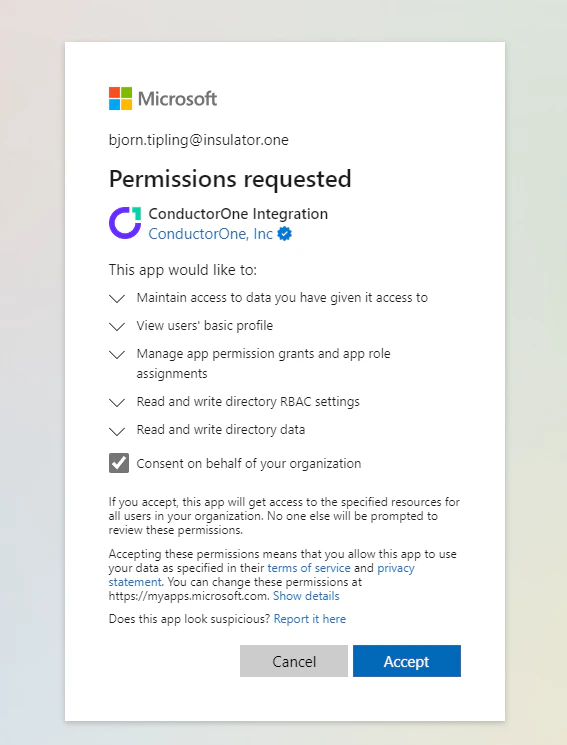
Log in and authorize ConductorOne with your Azure AD instance.
In order for the integration to work properly, you must consent to all permissions:
 ### Step 2: Grant permissions to the ConductorOne app
In the Azure AD control panel, go to **Enterprise Applications**.
### Step 2: Grant permissions to the ConductorOne app
In the Azure AD control panel, go to **Enterprise Applications**.
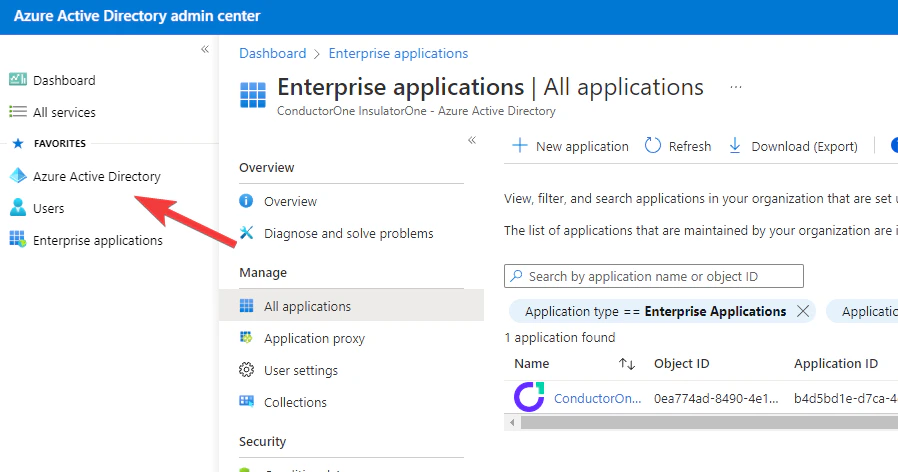 Click the **ConductorOne Integration** app (not to be confused with the **ConductorOne SSO** app, which is used to log into ConductorOne, not to synchronize your data).
If the ConductorOne Integration app doesn't appear in the list of apps right away, wait a minute and click **Refresh**.
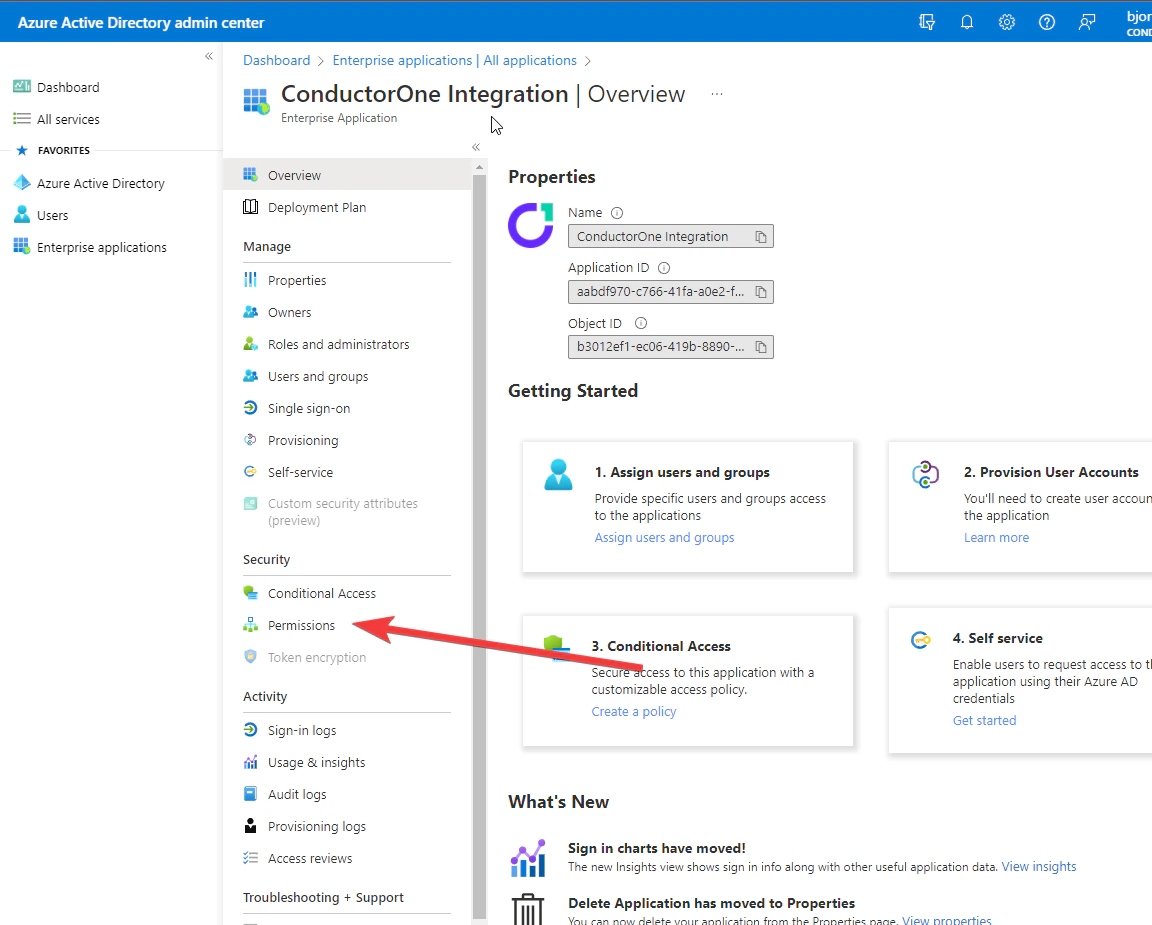
On the **ConductorOne Integration** page, click **Permissions** on the left side.
Click the **ConductorOne Integration** app (not to be confused with the **ConductorOne SSO** app, which is used to log into ConductorOne, not to synchronize your data).
If the ConductorOne Integration app doesn't appear in the list of apps right away, wait a minute and click **Refresh**.
On the **ConductorOne Integration** page, click **Permissions** on the left side.
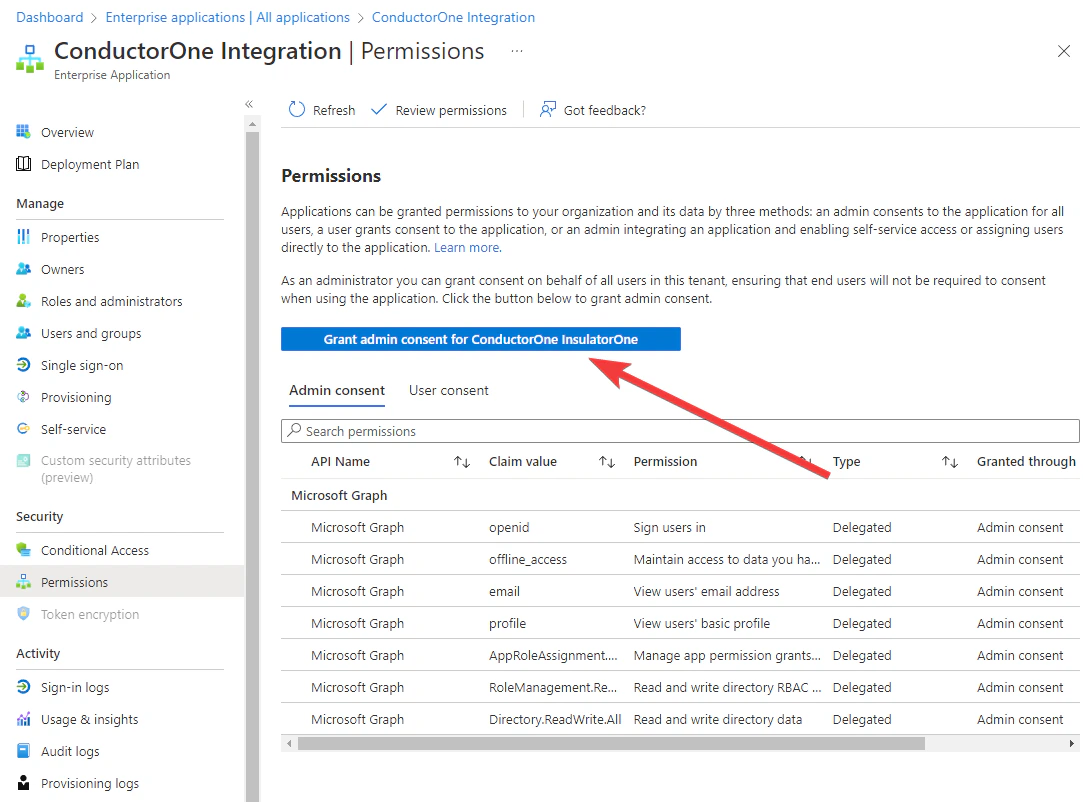
 Click **Grant admin consent for ...** on the **ConductorOne Integration** app permissions page.
 ### Step 3: Complete integration
Return to the Azure AD integration in ConductorOne by clicking the **Azure Active Directory** tile on the **Integrations** page.
Click the **Azure Active Directory** connector link that shows today's date in the **Connected on** column.
Click **Login with OAuth** a second time to complete the process and authorize ConductorOne to obtain an access token with the permissions you've just granted.
**That's it!** Your Azure Active Directory connector is now pulling access data into ConductorOne.
### What's next?
If Azure Active Directory is your company's identity provider (meaning that it is used to SSO into other software), the integration sync will automatically create applications in ConductorOne for all of your SCIMed software. Before you move on, review the [Create applications](/product/admin/applications) page for important information about how to set up integrations with the SCIMed apps.
### Step 3: Complete integration
Return to the Azure AD integration in ConductorOne by clicking the **Azure Active Directory** tile on the **Integrations** page.
Click the **Azure Active Directory** connector link that shows today's date in the **Connected on** column.
Click **Login with OAuth** a second time to complete the process and authorize ConductorOne to obtain an access token with the permissions you've just granted.
**That's it!** Your Azure Active Directory connector is now pulling access data into ConductorOne.
### What's next?
If Azure Active Directory is your company's identity provider (meaning that it is used to SSO into other software), the integration sync will automatically create applications in ConductorOne for all of your SCIMed software. Before you move on, review the [Create applications](/product/admin/applications) page for important information about how to set up integrations with the SCIMed apps.