> ## Documentation Index
> Fetch the complete documentation index at: https://conductorone-docs-iga-1271.mintlify.site/llms.txt
> Use this file to discover all available pages before exploring further.
# Interact with ConductorOne via Slack
> Use the ConductorOne Slack app to request access, review access requests, and get notifications when there are tasks that need your attention in ConductorOne.
## What can I do with the ConductorOne Slack app?
Use the ConductorOne Slack app to interact directly with ConductorOne without leaving Slack. Once the ConductorOne Slack app is installed for your workspace, you and your colleagues can:
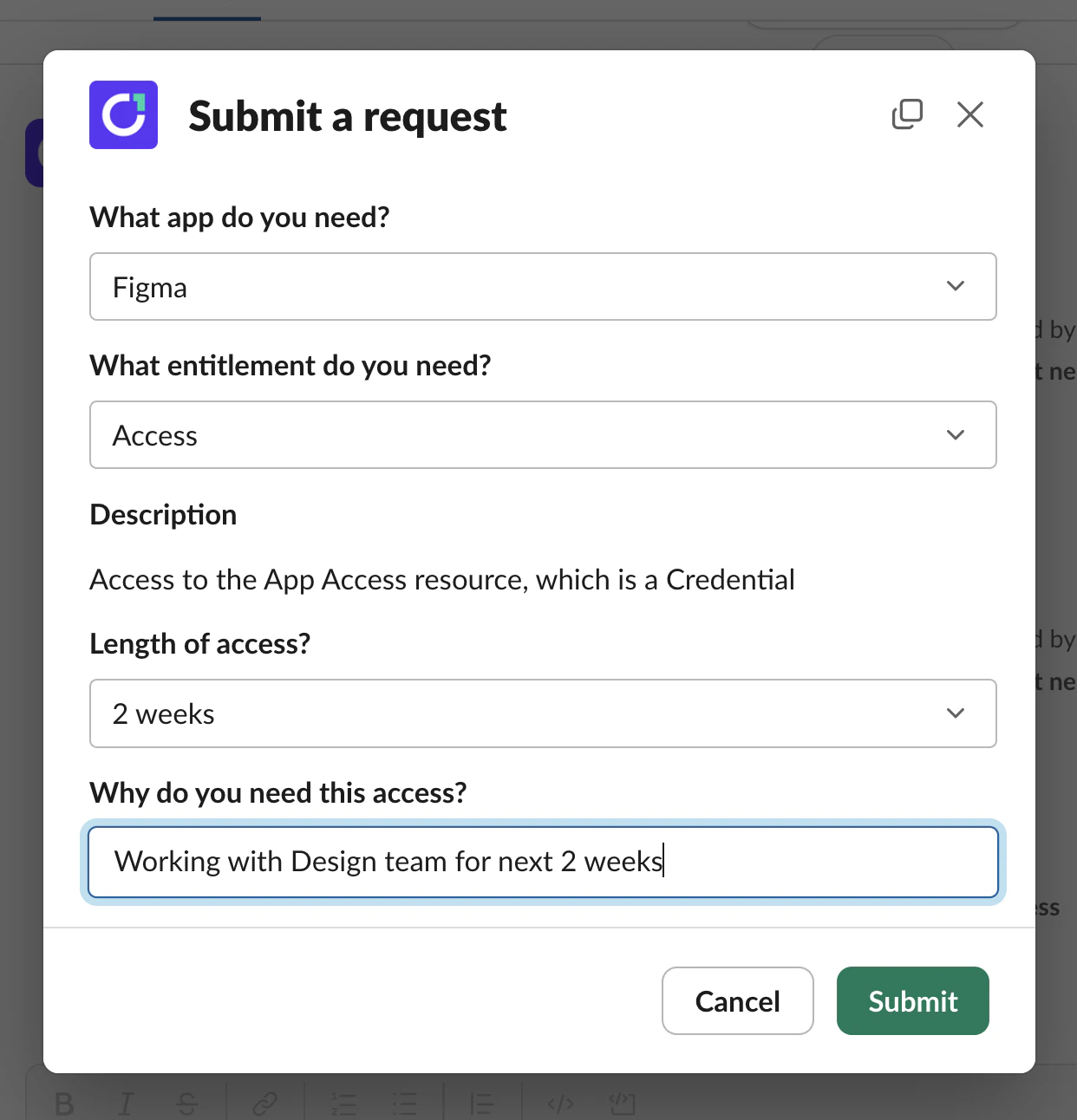
* Request access from anywhere in Slack using the `/c1 request` command:
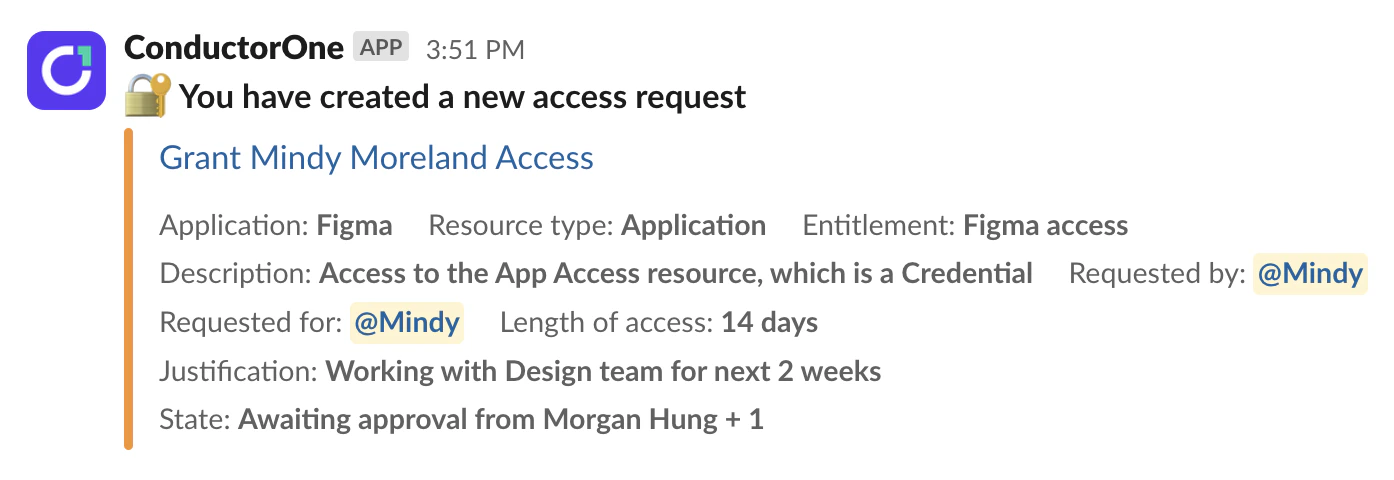
 * Track the progress of your open access requests:
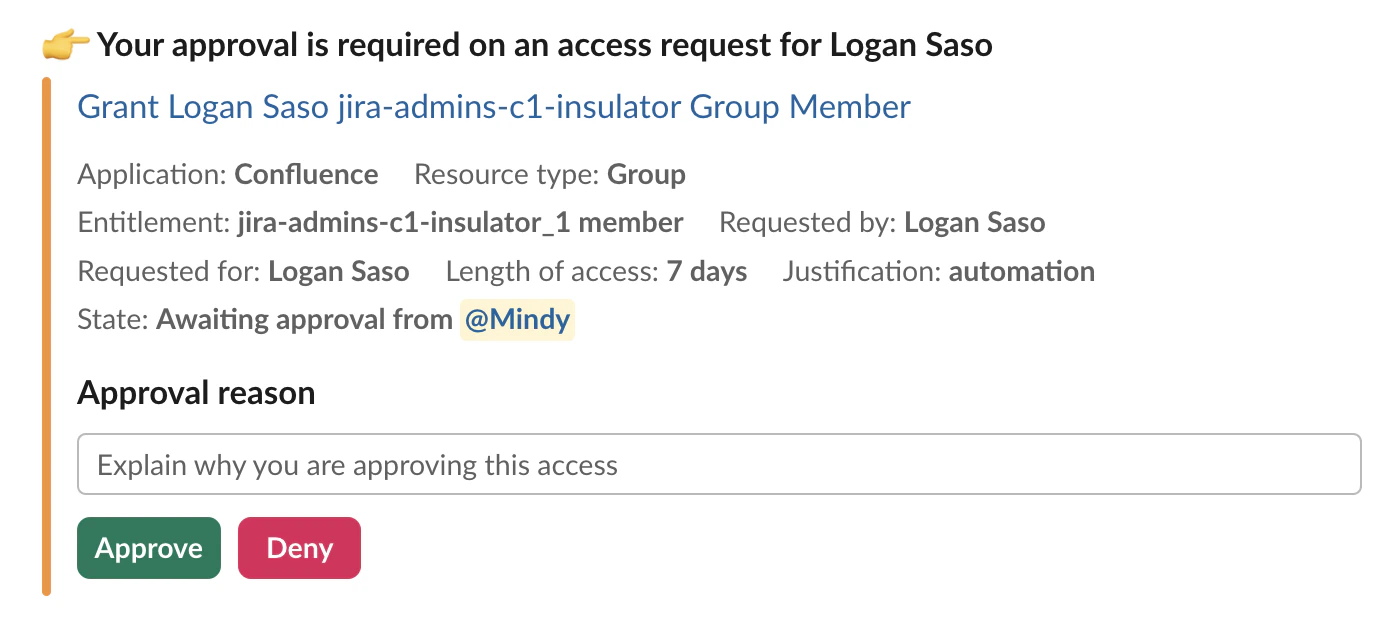
 * Get notified when your review is needed on a colleague's access request, and approve or deny the request without leaving Slack:
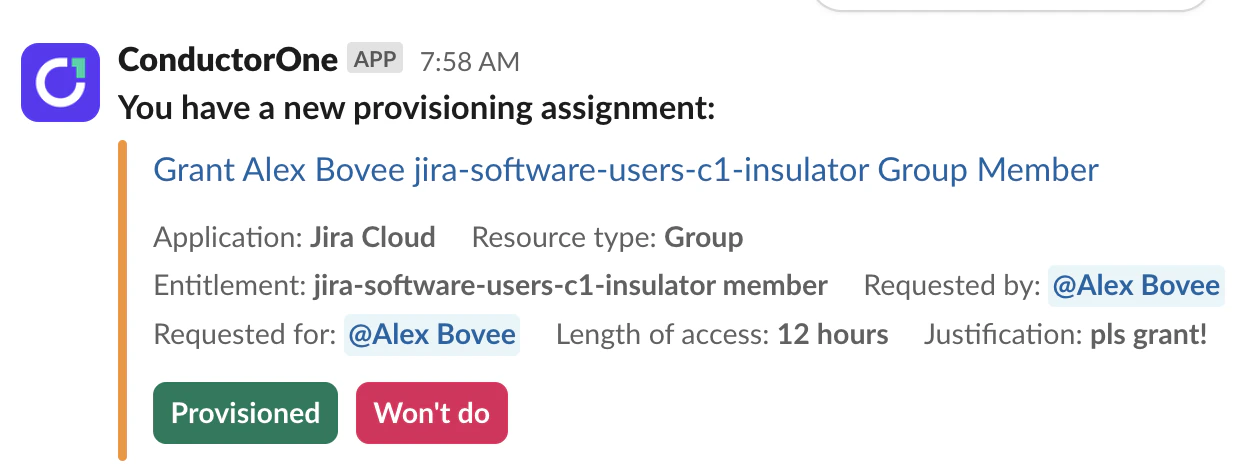
 * Get notified when you have a manual provisioning or deprovisioning assignment, and mark it complete without leaving Slack:
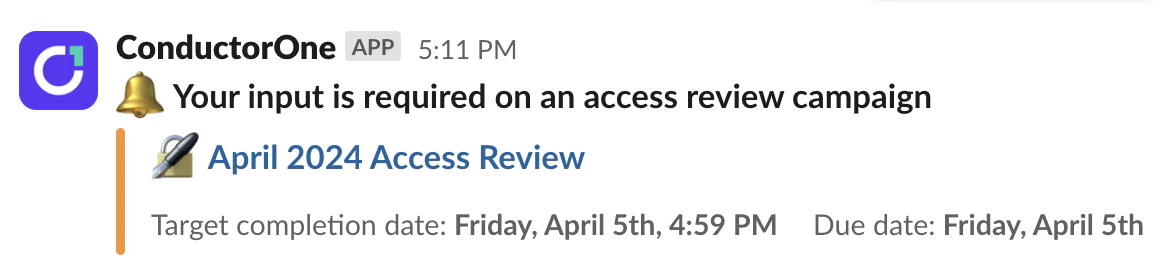
 * Get notified when there are access review tasks assigned to you as part of an access review campaign:
 ## Install the ConductorOne Slack app for your organization
Approve the ConductorOne app for use in your organization's Slack workspace.
In ConductorOne, navigate to **Settings** > **Notifications**.
In the **Slack** section of the page, click **Connect**.
Click **Add to Slack** and select a channel where the ConductorOne app can post messages.
Click **Allow**.
**That's it!** You'll be directed back to the ConductorOne **Settings** page, where you'll see that your Slack workspace is now connected.
## Add the ConductorOne Slack app to an individual workspace
In Slack, navigate to the **Apps** section of the navigation bar.
Click **Add apps** and search for ConductorOne.
Click the ConductorOne app and follow the prompts to add it to your Slack workspace.
**That's it!** You can now interact with ConductorOne directly from Slack.
## Create a campaign Slack channel
During an access review campaign, the campaign owner can send notifications to fellow campaign owners and reviewers in a new or existing Slack channel.
Navigate to the campaign's **Configuration** tab.
* If you haven't yet started the campaign, the **Configuration** tab is shown before you prepare the campaign and again before you start the campaign.
* If the campaign is in progress, the **Configuration** tab is available on the campaign's main page.
In the **Communications** area of the page, click **Add to Slack channel**.
Enter a Slack channel name, either an existing channel in your workspace that you'd like to add campaign notifications to, or a name for a new channel you want to create for this purpose. Slack does not accept spaces or special characters in channel names.
**Optional.** If you're creating a new Slack channel, enter a description of the channel, up to 250 characters.
Click **Add to channel**.
**Need to send campaign messages to a private Slack channel?** Make sure to install the ConductorOne Slack app in the private channel first, then follow the steps above to add campaign notifications to that channel.
All campaign owners and users assigned access reviews will be automatically added to this channel. If a new user is assigned an access review during the campaign, they will also be automatically added to the channel.
Click **Deactivate** to stop sending campaign updates to the channel.
Click **Remove** to remove this channel entirely from the campaign. You can then add a new channel, if necessary.
When the campaign ends, the status in the channel will read **Completed** and no further notifications will be sent by ConductorOne. The channel will remain open until archived by your organization.
## Install the ConductorOne Slack app for your organization
Approve the ConductorOne app for use in your organization's Slack workspace.
In ConductorOne, navigate to **Settings** > **Notifications**.
In the **Slack** section of the page, click **Connect**.
Click **Add to Slack** and select a channel where the ConductorOne app can post messages.
Click **Allow**.
**That's it!** You'll be directed back to the ConductorOne **Settings** page, where you'll see that your Slack workspace is now connected.
## Add the ConductorOne Slack app to an individual workspace
In Slack, navigate to the **Apps** section of the navigation bar.
Click **Add apps** and search for ConductorOne.
Click the ConductorOne app and follow the prompts to add it to your Slack workspace.
**That's it!** You can now interact with ConductorOne directly from Slack.
## Create a campaign Slack channel
During an access review campaign, the campaign owner can send notifications to fellow campaign owners and reviewers in a new or existing Slack channel.
Navigate to the campaign's **Configuration** tab.
* If you haven't yet started the campaign, the **Configuration** tab is shown before you prepare the campaign and again before you start the campaign.
* If the campaign is in progress, the **Configuration** tab is available on the campaign's main page.
In the **Communications** area of the page, click **Add to Slack channel**.
Enter a Slack channel name, either an existing channel in your workspace that you'd like to add campaign notifications to, or a name for a new channel you want to create for this purpose. Slack does not accept spaces or special characters in channel names.
**Optional.** If you're creating a new Slack channel, enter a description of the channel, up to 250 characters.
Click **Add to channel**.
**Need to send campaign messages to a private Slack channel?** Make sure to install the ConductorOne Slack app in the private channel first, then follow the steps above to add campaign notifications to that channel.
All campaign owners and users assigned access reviews will be automatically added to this channel. If a new user is assigned an access review during the campaign, they will also be automatically added to the channel.
Click **Deactivate** to stop sending campaign updates to the channel.
Click **Remove** to remove this channel entirely from the campaign. You can then add a new channel, if necessary.
When the campaign ends, the status in the channel will read **Completed** and no further notifications will be sent by ConductorOne. The channel will remain open until archived by your organization.