

Capabilities
The Zendesk connector supports automatic account provisioning and deprovisioning.
Connector actions
Connector actions are custom capabilities that extend ConductorOne automations with app-specific operations. You can use connector actions in the Perform connector action automation step.Gather Zendesk credentials
Configuring the connector requires you to pass in credentials generated in Zendesk. Gather these credentials before you move on.Locate the subdomain for your Zendesk account
1
In your Zendesk account, navigate to the Admin page by clicking the gear icon in the left menu bar.
2
Locate your Zendesk subdomain in the top right corner of the page.
3
Make a note of your subdomain.
Create an API token
1
Click Go to Admin Center.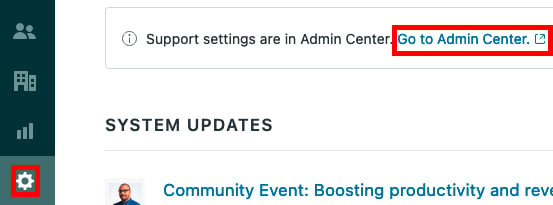
2
Open Apps and integrations in the navigation bar and click Zendesk API.
3
Click the toggle to enable token access.
4
Click Add API token, then copy and save the newly created token.
5
Click Save.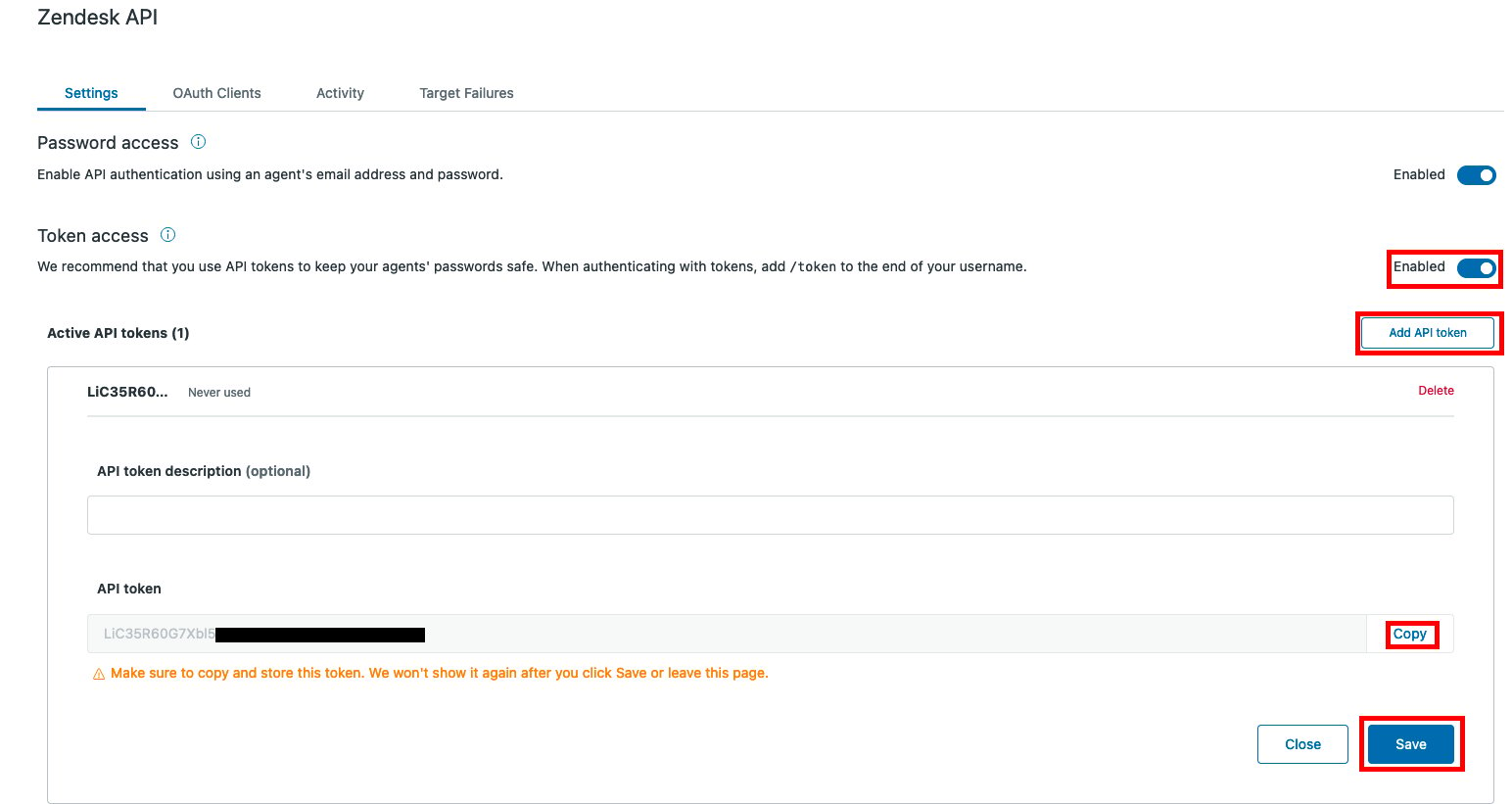
Configure the Zendesk connector
- Cloud-hosted
- Self-hosted
Follow these instructions to use a built-in, no-code connector hosted by ConductorOne.That’s it! Your Zendesk connector is now pulling access data into ConductorOne.
1
In ConductorOne, navigate to Integrations > Connectors and click Add connector.
2
Search for Zendesk v2 and click Add.
3
Choose how to set up the new Zendesk connector:
- Add the connector to a currently unmanaged app (select from the list of apps that were discovered in your identity, SSO, or federation provider that aren’t yet managed with ConductorOne)
- Add the connector to a managed app (select from the list of existing managed apps)
- Create a new managed app
4
Set the owner for this connector. You can manage the connector yourself, or choose someone else from the list of ConductorOne users. Setting multiple owners is allowed.If you choose someone else, ConductorOne will notify the new connector owner by email that their help is needed to complete the setup process.
5
Click Next.
6
Find the Settings area of the page and click Edit.
7
In the Subdomain field, enter the subdomain.
8
In the Email field, enter the email address associated with your System Admin account in Zendesk.
9
Paste the token into the API Token field.
10
Optional. Enter a comma-separated list of the organizations you want to sync in the Organizations field. If this field is left blank ConductorOne will sync all available organizations.
11
Click Save.
12
The connector’s label changes to Syncing, followed by Connected. You can view the logs to ensure that information is syncing.