

Use the copilot to write function code
Not sure where to start with TypeScript or the ConductorOne API? The built-in AI code assistant can generate a working function from a plain-language description of what you want it to do — no TypeScript expertise required. Since functions start as drafts, you can try out the generated code, run it, and iterate safely before publishing. To get started, open a function’s detail page and click Copilot in the code editor toolbar.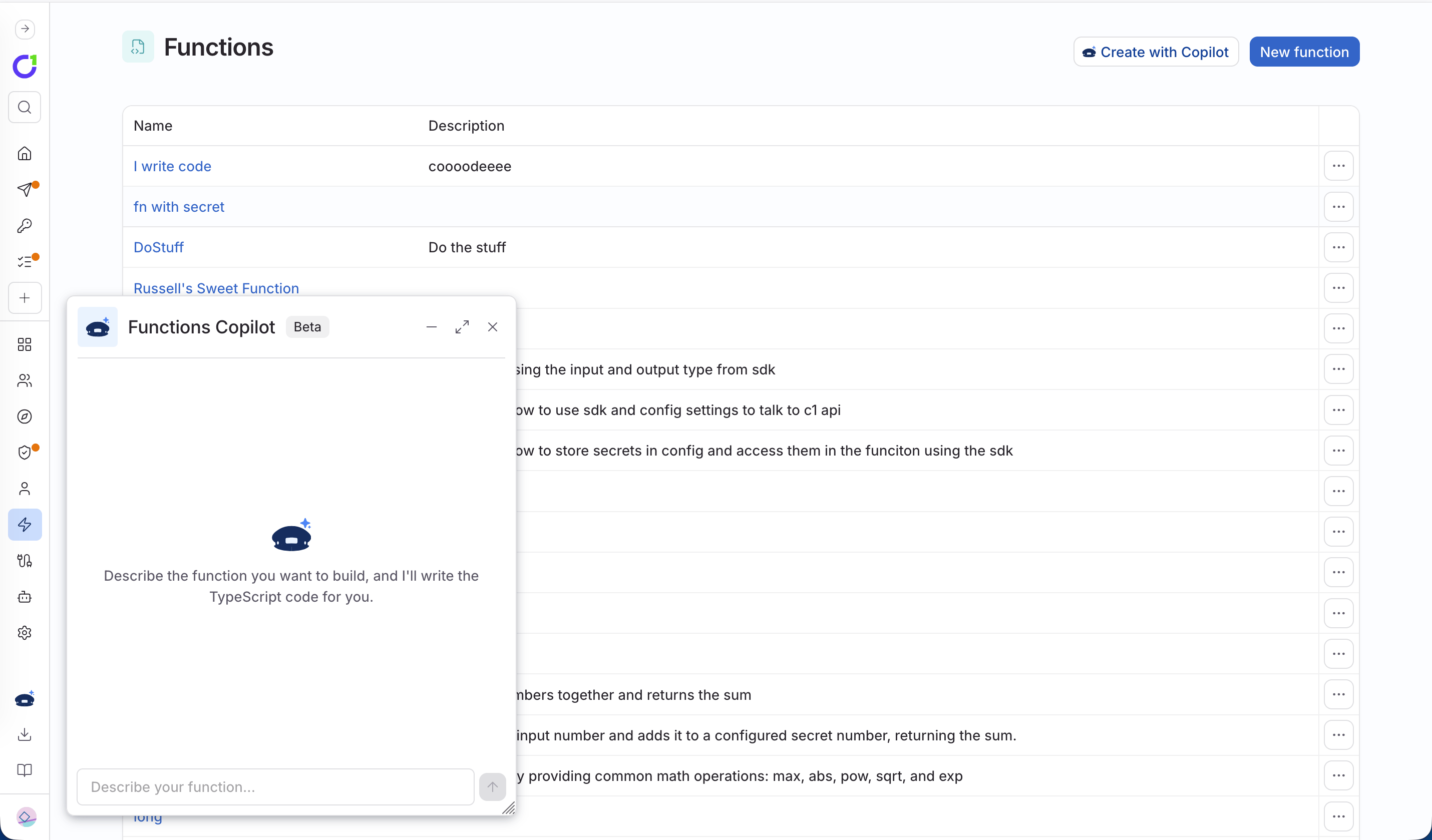
Step 1: Set up a new function
1
Navigate to Workflows > Functions.
2
Click New function.
3
Enter a name and optional description, then click Create.
4
You’re taken to the detail page with a built-in code editor (Monaco, TypeScript mode). The editor includes two files:
main.ts for your function code and main.test.ts for tests.Step 2: Write function code
Every function must export amain function that accepts input and returns a result. Both input and output are JSON objects.
Basic structure
Use input parameters
Accept input to make your function interactive:Access ConductorOne data
Use the pre-authenticatedsdk object to query data from your ConductorOne tenant.
Before using the SDK, configure your function’s scopes to allow access to ConductorOne APIs. See Scopes in the reference documentation.
List users
Get a specific user
Search users
Use secrets and configuration
Store API keys and configuration values securely in your function’s config.Set secrets in the UI
1
Navigate to your function and click Edit config (in the more menu).
2
In the Secrets section, add key/value pairs.
3
Click Save.
Access secrets in code
Call external APIs
Step 3: Handle errors
Functions should handle errors gracefully and return useful information for debugging.Try-catch pattern
Input validation
Step 4: Test your function
There are two ways to test your function: manual invocation and automated tests.Manual invocation
1
Click Run draft to invoke your function with test JSON input.
2
Provide test input in the JSON editor, for example:
{}3
View the output and logs in the invocation details drawer.
Automated tests
New functions include amain.test.ts file with a starter template. Write tests using the @c1/test framework:
main function as handler, so each test can call it with different inputs.
1
Click Test draft (or Run tests when viewing published code) to execute your tests.
2
View individual test results in the dialog. Each
test() call becomes its own result with a pass/fail status.3
Click on a test result to expand assertion details and logs.
Step 5: Publish your function
1
Click Save draft to commit your changes.
2
Click Publish to make your function available for use across ConductorOne.